How to Track Contract and Subscription Renewals in Google Sheets
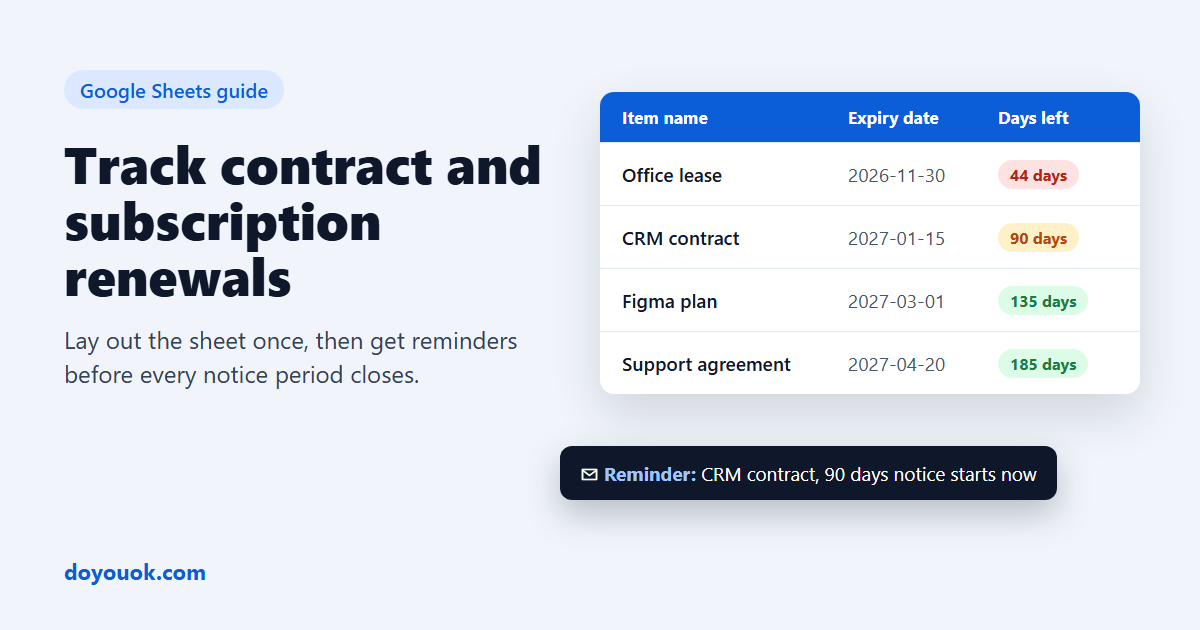
Contracts and subscriptions rarely fail loudly. A SaaS plan renews on a card nobody checks, a vendor contract rolls over for another year because the cancellation window closed last month, a support agreement lapses the week you need it. In almost every case the date was written down somewhere, usually in a spreadsheet.
This guide shows how to lay out a renewal sheet in Google Sheets that stays easy to maintain, and how to get reminders from it automatically with the free Expiry Reminders add-on.
1. Lay out the sheet
Keep one row per contract or subscription. Only the first two columns are needed for reminders; the rest make the reminder emails more useful.
| Column | Example | Why it helps |
|---|---|---|
| Item name | Figma Organization plan | Shown as the subject of each reminder |
| Expiry date | 2026-12-01 | The date reminders count down to |
| Owner | Maria | Shown in every reminder, so everyone knows who acts |
| Renewal term | 1 year | Used when you press Renew in the sidebar |
| Notes | Auto-renews, 60 days notice, card ending 4242 | Shown under the item in the reminder email |
| Recipient email | [email protected] | That person also gets an email with only their own items |
A few habits that save trouble later:
- Use real dates. Format the column as a date (Format > Number > Date) or type dates as yyyy-mm-dd. Text such as "Dec 2026" can't be counted down.
- Write the expiry or renewal date, not the start date. For an auto-renewing contract, use the date it renews.
- Put the notice period in Notes. It reminds whoever reads the email how much time they really have.
- Several tabs are fine. Each tab keeps its own columns, and the email shows which tab each item comes from.
2. Pick reminder days that match the notice period
The default reminders (60, 30, 14 and 7 days before, and on the day) suit most subscriptions. Contracts are different: if a contract needs 90 days written notice to cancel, a reminder 30 days before the renewal date is already too late.
In Expiry Reminders you can choose Custom days… and enter up to 10 numbers of days, for example:
- Monthly or yearly SaaS: 30, 7, 0
- Contract with 60 days notice: 90, 75, 60
- Contract with 90 days notice: 120, 100, 90
Reminder days apply to the whole spreadsheet. If your contracts and subscriptions need very different schedules, keep them in two spreadsheets; spreadsheets are unlimited, even on the Free plan.
3. Turn on reminders
- Install Expiry Reminders, open the sheet and choose Extensions > Expiry Reminders > Open.
- Press Set up reminders and pick the tab, plus its Item name and Expiry date columns. Add the optional columns from the table above if you have them.
- Choose who gets the emails, the reminder days, and what happens after something expires: remind every week, every day, or stop.
- Press Turn on reminders. A test email arrives right away.
Google then checks the sheet once a day, even when the file is closed, and everything due that day arrives in one email.
4. Send each owner only their own renewals
When different people own different contracts, choose your Recipient email column in Settings. Each person gets an email with only their own items, while the addresses in Send reminders to still get the full list. Nobody has to open the shared sheet to know what is coming up.
5. Close the loop when something renews
When a contract or subscription is renewed, open the sidebar, press Renew next to the item and pick the term. The expiry date moves forward and reminders start over for the new date. You can also simply type the new date in the sheet.
Items that have already expired keep being reminded every week or every day (if you chose that) until their date changes, so nothing quietly drops off the list.
What it costs
Expiry Reminders is free for up to 100 reminded items a year, with every feature included. That covers the contracts and subscriptions of most small teams. Larger plans are on the pricing page.
Get started
Install Expiry Reminders and point it at the sheet you already have. For every setting and common question, see the help page. New to the add-on? Read our introduction to Expiry Reminders.