Doyouok for n8n Help
Setup guide, answers to common questions, and a free assistant for the Doyouok n8n node, verified by n8n: alerts when a workflow misses a run or runs but returns the wrong result.
Ask the assistant
Hi! Ask me anything about the Doyouok n8n node: installing, the API token, conditions, alerts or plans.
See how it works
Install the node
- The node is verified by n8n. In any workflow, open the nodes panel, search for "Doyouok", select it under More from the community and press Install node. Only the instance owner or an admin can install it; after that every member can use it. This works on n8n Cloud and on self-hosted n8n.
- n8n Cloud: if Doyouok does not show up, have the instance owner check that Verified community nodes is turned on in Instance settings in the n8n Cloud console.
- Self-hosted n8n can also install it by hand: open Settings > Community Nodes, press Install, enter n8n-nodes-doyouok, accept the risk notice and press Install.
- After installing, the Doyouok node and the Doyouok API credential are available in every workflow.
Connect your Doyouok account
- Sign in to doyouok.com (the Free plan is enough) and open Profile > API tokens. Only the account owner can create tokens.
- Enter a token name such as "n8n", press "Create token" and copy the token. It is shown only once.
- In n8n, create a Doyouok API credential and paste the token into API Token. Leave Base URL as https://doyouok.com. n8n tests the token when you save the credential.
Monitor a workflow
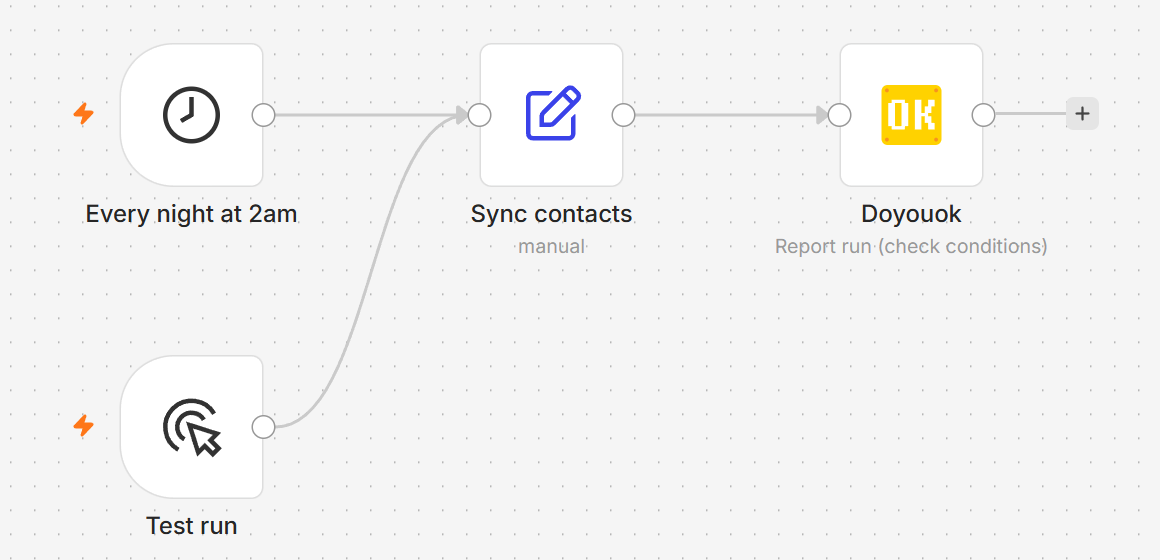
- Add the Doyouok node at the end of the workflow, after the steps that do the work, and choose your Doyouok API credential.
- Check: leave "This Workflow (Automatic)" so the node creates a check for this workflow by itself, or choose "Existing Check" to report to a check you created in Doyouok.
- Expected Every and Unit: how often the workflow should run, for example 1 Days for a nightly job. Doyouok alerts you when a run is overdue.
- Result: "Check Conditions" reports success only if every input item matches the Conditions, "Success" always reports success, and "Failure" always reports failure (use it on an error branch).
- Save the workflow (the check is linked to the workflow's ID), then run it once. The check appears on your Doyouok dashboard with the workflow's name.
Example: a nightly import
- Schedule Trigger runs every day at 02:00, then an HTTP Request node calls your import API and returns { "processedCount": 42 }.
- Doyouok node: Check "This Workflow (Automatic)", Expected Every 1, Unit Days, Result "Check Conditions", Conditions {{ $json.processedCount }} (Number) is greater than 0.
- Optional: Options > Failure Message, for example "Import processed {{ $json.processedCount }} rows".
- If rows were imported, the run is reported as successful. If the import ran but processed 0 rows, the run is reported as failed and you get an alert. If the workflow did not run at all, no report arrives and Doyouok alerts you that the run is overdue.
Frequently asked questions
Yes. The node is free and open source (MIT). Each workflow monitored with "This Workflow (Automatic)" uses one check from your Doyouok plan, and the Free plan includes 5 checks with no credit card. Bigger plans are on the pricing page at doyouok.com/home/pricing.
Two kinds: a workflow that does not run on schedule (n8n was down, the workflow was deactivated, or a node failed and stopped the run), and a workflow that runs but gives a wrong result, such as 0 rows processed or a response without "success". The second kind is a silent failure: n8n shows the run as successful, so nobody notices.
No. With "This Workflow (Automatic)" the node creates the check on the first run and gets its ping URL by itself. If you rename the workflow or change Expected Every, the check is updated on the next run.
The automatic check is linked to the workflow's ID, which n8n assigns when the workflow is saved for the first time. Save the workflow and run it again.
Your Doyouok plan has no checks left for a new workflow. Delete checks you no longer need in Doyouok, or upgrade at doyouok.com/home/pricing. On Agency plans, also fill in Options > Client Name: it is required there.
The node sends one report per run. Every input item must match the conditions; if any item fails, the whole run is reported as failed and the alert names the first failing item and the value it had, for example "processedCount is 0, expected > 0".
The workflow's name, a link to the failed execution in your n8n, and either your Failure Message or the conditions that were not met. Alerts go to your email and to Telegram, Slack or Discord if you connected them on the Notifications page in Doyouok.
Open the business node's Settings, set On Error to "Continue (using error output)" and connect its error output to a second Doyouok node with Result set to "Failure". Both Doyouok nodes report to the same check.
Yes. Every run that reaches the Doyouok node, including a manual test run, is reported to the check.
A check created by the node belongs to the workflow: its name comes from the workflow and its interval from Expected Every. Change them in n8n; Doyouok updates the check on the next run.
On the next run the node notices the check is gone and creates a new one for the workflow automatically.
Yes. Create the check in Doyouok, then in each workflow choose Check > "Existing Check" and pick it from the list. Expected Every is then set on the check in Doyouok.
The workflow's name and ID, your n8n instance ID, the expected interval, whether the run succeeded, and on a failure the reason text (your Failure Message or the failed conditions and their values) with a link to the execution. Your workflow's input and output data are not sent.
Yes. In Doyouok open Profile > API tokens and press Revoke. The node can then no longer create or update checks with that token. Workflows that already have a check keep reporting to it until you remove the Doyouok node from them or delete the check.
The node is open source under the MIT license. Doyouok Privacy Policy · Terms of Service